

How to Export Products from Amazon Seller (2026 Guide)
Follow these steps to export your Amazon Seller products as a CSV file. Once exported, you can use any of our converter tools to transform the data for your target system.
Export Steps
Log in to Amazon Seller Central
Open sellercentral.amazon.com in your browser and sign in with your seller account credentials. Complete any two-factor authentication if prompted. Ensure you are viewing the correct marketplace for the product listings you want to export.
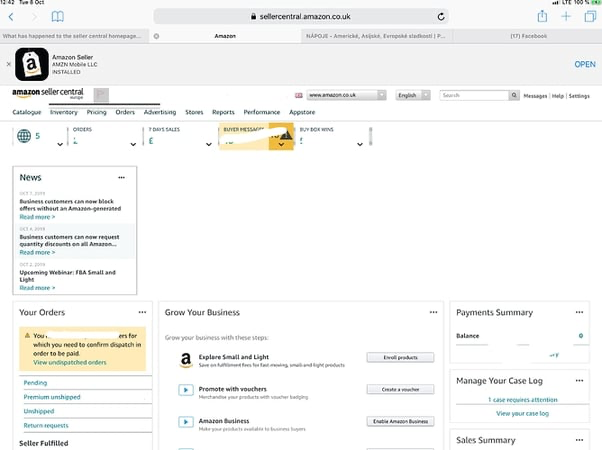
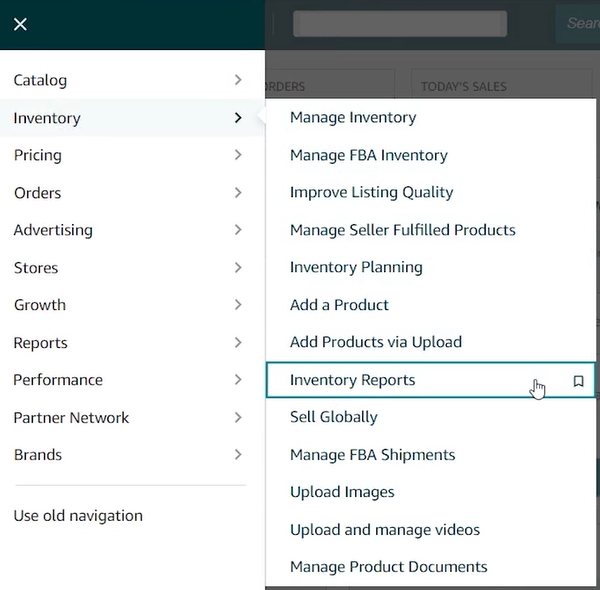
Open the Inventory Reports page
Click the hamburger menu icon in the upper-left corner of the page, or hover over the 'Inventory' menu in the top navigation bar. From the dropdown or side menu, select 'Inventory Reports'. This page provides access to all listing and inventory report types.
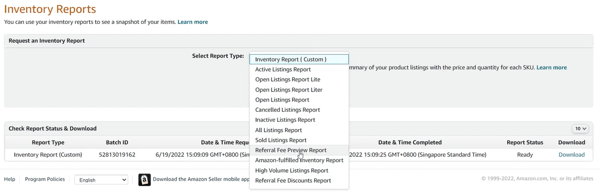
Select the All Listings Report type
On the Inventory Reports page, locate the report type dropdown near the top of the page. Select 'All Listings Report' from the dropdown menu. This report includes every product in your catalog regardless of whether it is active or inactive.

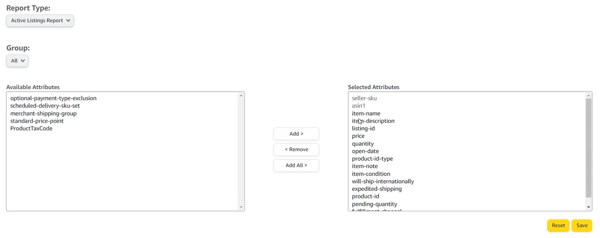
Customize report columns (optional)
For the custom inventory report option, you can add or remove columns before generating the file. Available attributes are listed on the right side of the page, and included attributes appear on the left. Drag columns between the two lists to customize which data fields appear in your export.
Request the report
Click the yellow 'Request Report' button to start generating the file. The report will be queued for processing. Generation time depends on the size of your catalog and typically ranges from a few seconds for small inventories to 15-45 minutes for large catalogs with thousands of SKUs.

Check report status and download
Scroll down to the 'Check Report Status & Download' section on the same page. When the report status shows 'Ready', click the 'Download' button to save the file to your computer. The file downloads as a tab-delimited text file (.txt) by default.

Convert to CSV format
Open the downloaded .txt file in Excel or Google Sheets. When prompted for import settings, choose 'Tab' as the delimiter. Review the data to confirm all expected products and columns are present. Then save the file as CSV by going to File > Save As and selecting 'CSV (Comma delimited)' from the format options.
Required Products Fields
| Field | Type | Description | Example |
|---|---|---|---|
| seller-sku | Text | Seller's stock keeping unit (unique identifier) | SHIRT-BLU-001 |
| item-name | Text | Product title displayed to customers | Blue Cotton T-Shirt |
| price | Currency | Current selling price | 29.99 |
| quantity | Number | Available stock quantity | 100 |
Your Amazon Seller export must include these fields for successful conversion.
