

How to Export Orders from Amazon Seller (2026 Guide)
Follow these steps to export your Amazon Seller orders as a CSV file. Once exported, you can use any of our converter tools to transform the data for your target system.
Export Steps
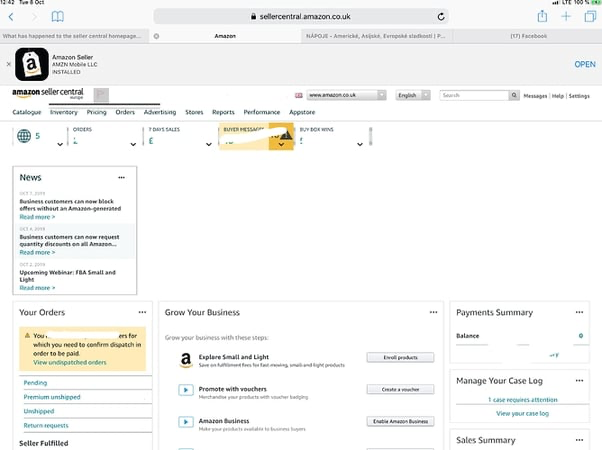
Log in to Amazon Seller Central
Open your web browser and navigate to sellercentral.amazon.com. Sign in with your seller credentials and complete any two-factor authentication steps. Confirm you are viewing the correct marketplace if you operate across multiple Amazon regions.
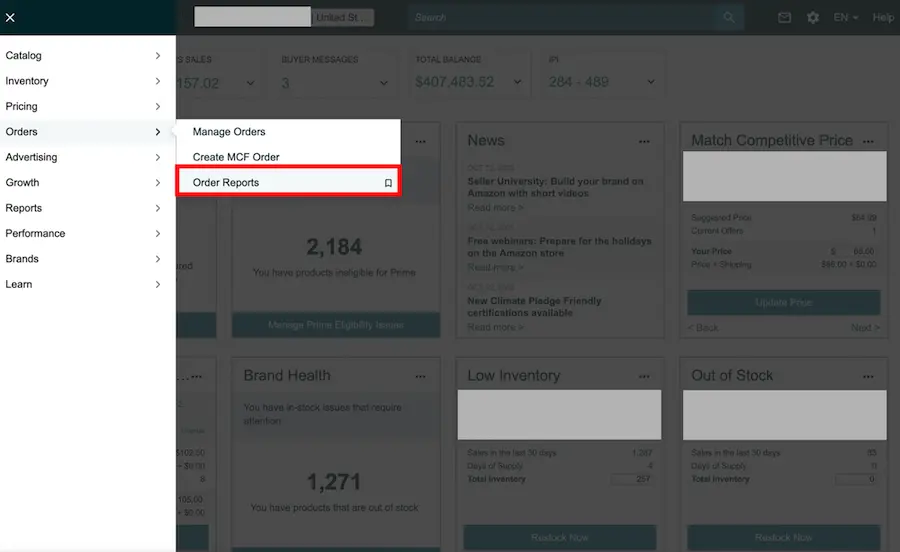
Navigate to Order Reports
From the top navigation bar, hover over the 'Orders' menu. In the dropdown, click 'Order Reports'. This page lets you generate and download reports containing detailed information about your orders, including both FBA and FBM fulfillment data.
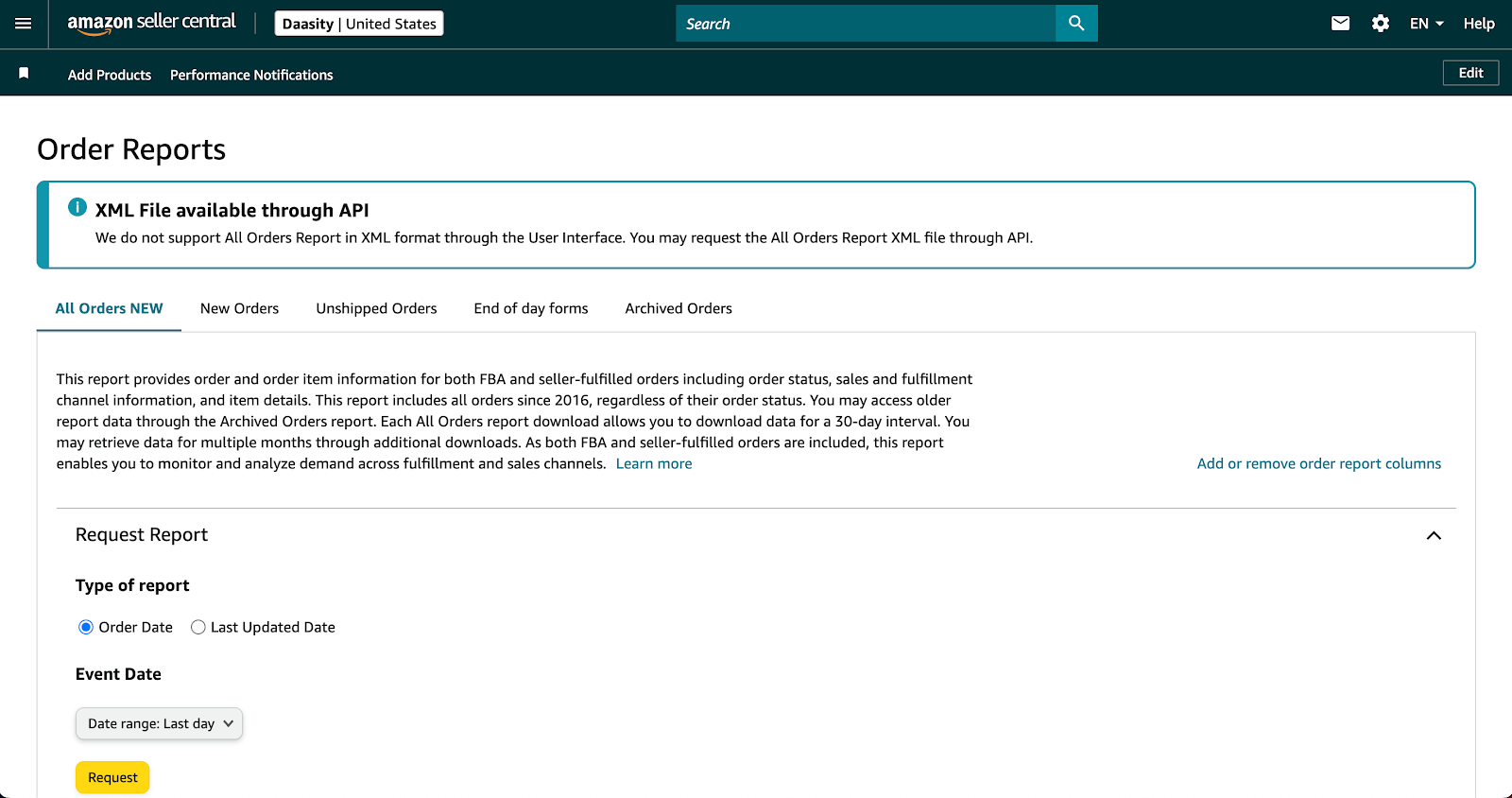
Select the report type
On the Order Reports page, you will see a dropdown to choose the report type. For a comprehensive export, select 'Order Report' or 'Flat File Order Report'. Other report variants are available for specific use cases such as unshipped orders or returns.

Set the date range for the report
Choose the start and end dates for the orders you want to include. You can select from preset ranges or enter custom dates. Amazon allows you to pull reports for up to 90 days at a time. For longer periods, you will need to generate multiple reports.

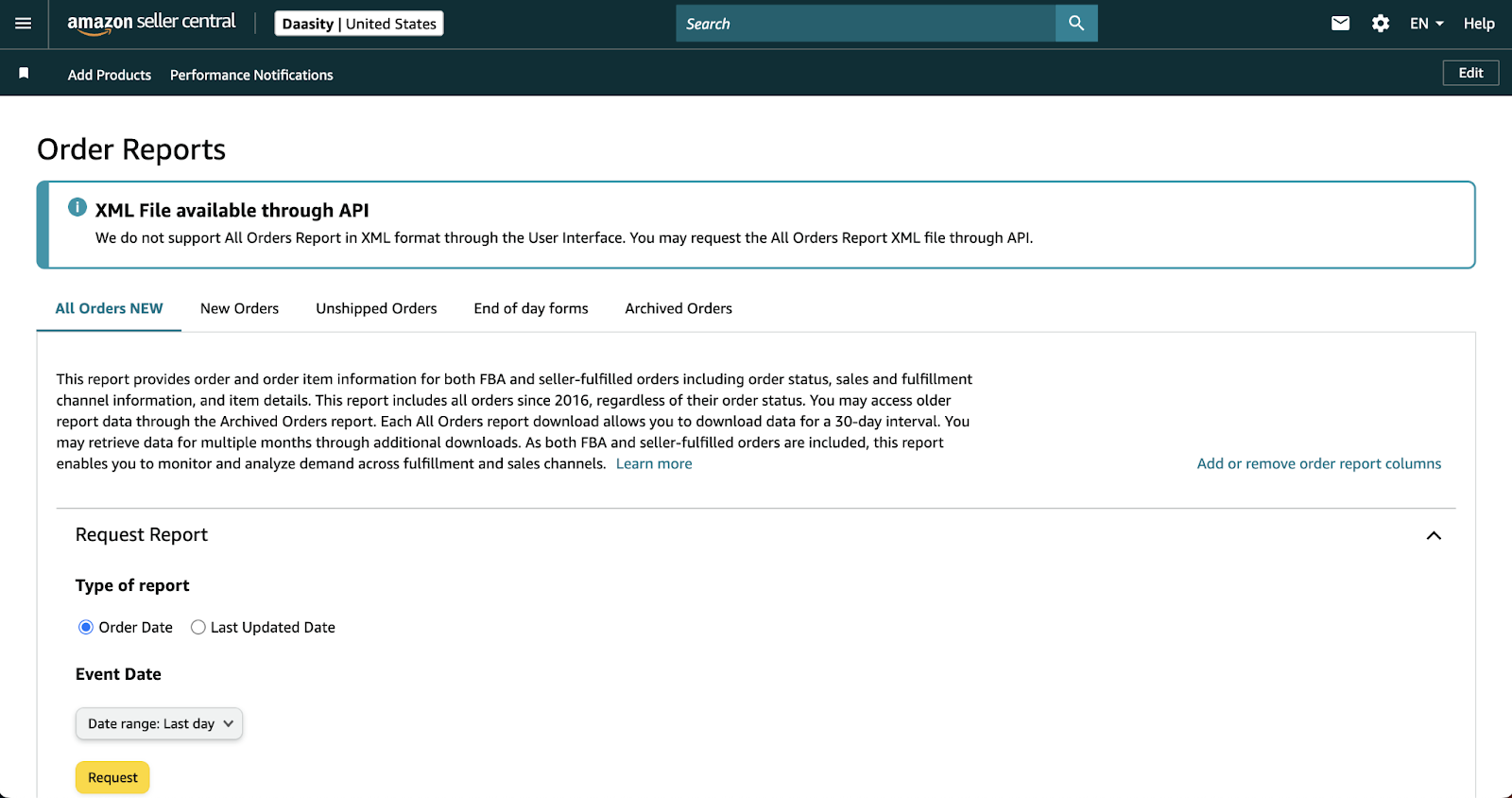
Request the report
Click the 'Request Report' button to begin generating the file. Give the report an optional name to help you identify it later. Amazon will queue the report for processing, which typically takes anywhere from a few seconds to several minutes depending on the volume of orders.
Download the generated report
After the report finishes processing, the status will change to 'Ready' in the report list below. Click the 'Download' button next to the completed report to save the CSV file to your computer. The file will contain one row per order with columns for order ID, status, pricing, and shipping details.
Open and review the file
Open the downloaded CSV file in your preferred spreadsheet application. Verify the column headers match your expectations and spot-check a few order rows to ensure the data is complete. Pay attention to columns like order-status, item-price, and purchase-date to confirm the data range is correct.
Required Orders Fields
| Field | Type | Description | Example |
|---|---|---|---|
| amazon-order-id | Text | Amazon order reference number | 111-1234567-1234567 |
| purchase-date | Date/Time | Order placement date/time | 2025-01-15T10:30:00+00:00 |
| order-status | Choice | Current order status | Shipped |
| quantity-purchased | Number | Units ordered | 2 |
| item-price | Currency | Item price (before shipping/tax) | 49.99 |
Your Amazon Seller export must include these fields for successful conversion.
