

How to Export Flat File Home from Amazon Seller (2026 Guide)
Follow these steps to export your Amazon Seller flat file home as a CSV file. Once exported, you can use any of our converter tools to transform the data for your target system.
Export Steps
Log in to Amazon Seller Central
Open sellercentral.amazon.com and sign in with your seller account email and password. Complete two-factor authentication if prompted. Confirm you are in the correct marketplace for the home and kitchen products you want to manage.
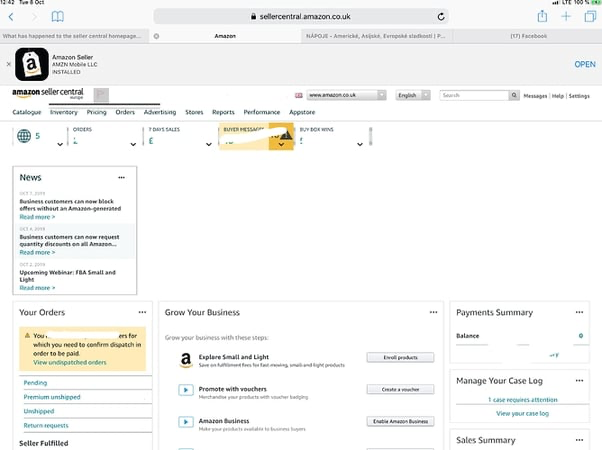
Navigate to Add Products via Upload
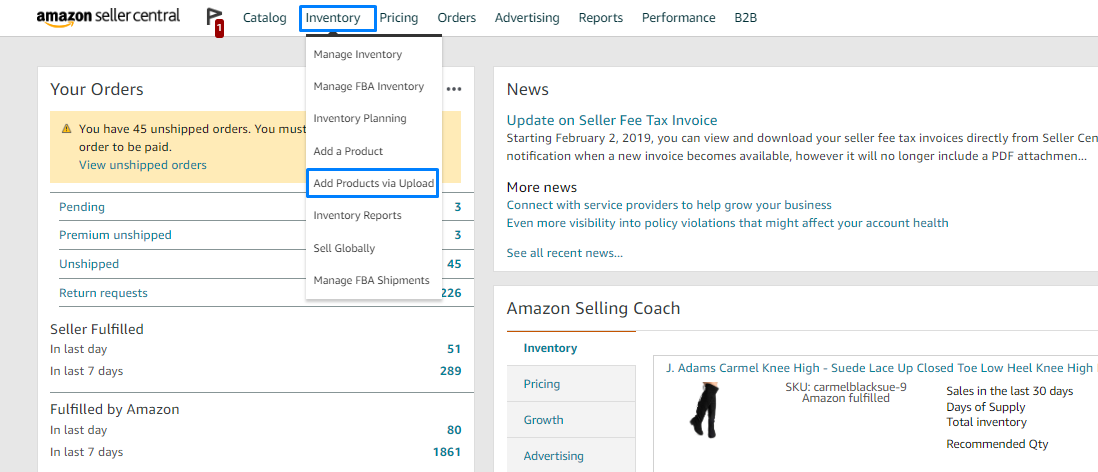
From the top navigation, hover over 'Inventory' and click 'Add Products via Upload'. This opens the bulk listing management interface where you can download templates, upload product files, and monitor upload processing.
Select Download an Inventory File
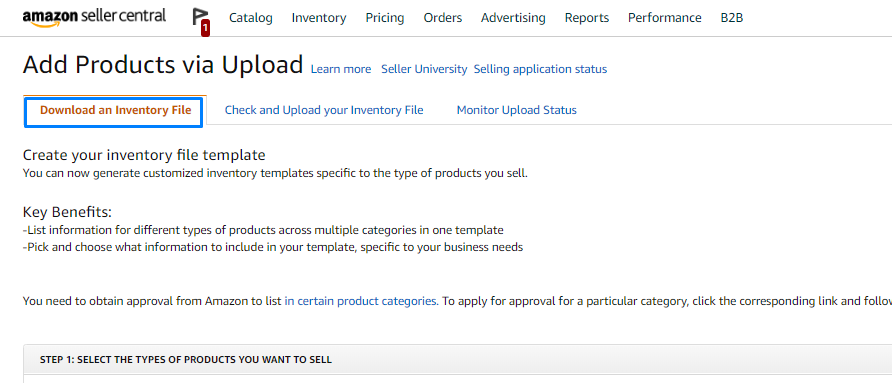
Click the 'Download an Inventory File' tab and select 'Category-Specific Inventory Files'. Category-specific templates provide additional fields relevant to particular product types beyond the universal listing columns.
Choose the Home and Kitchen category
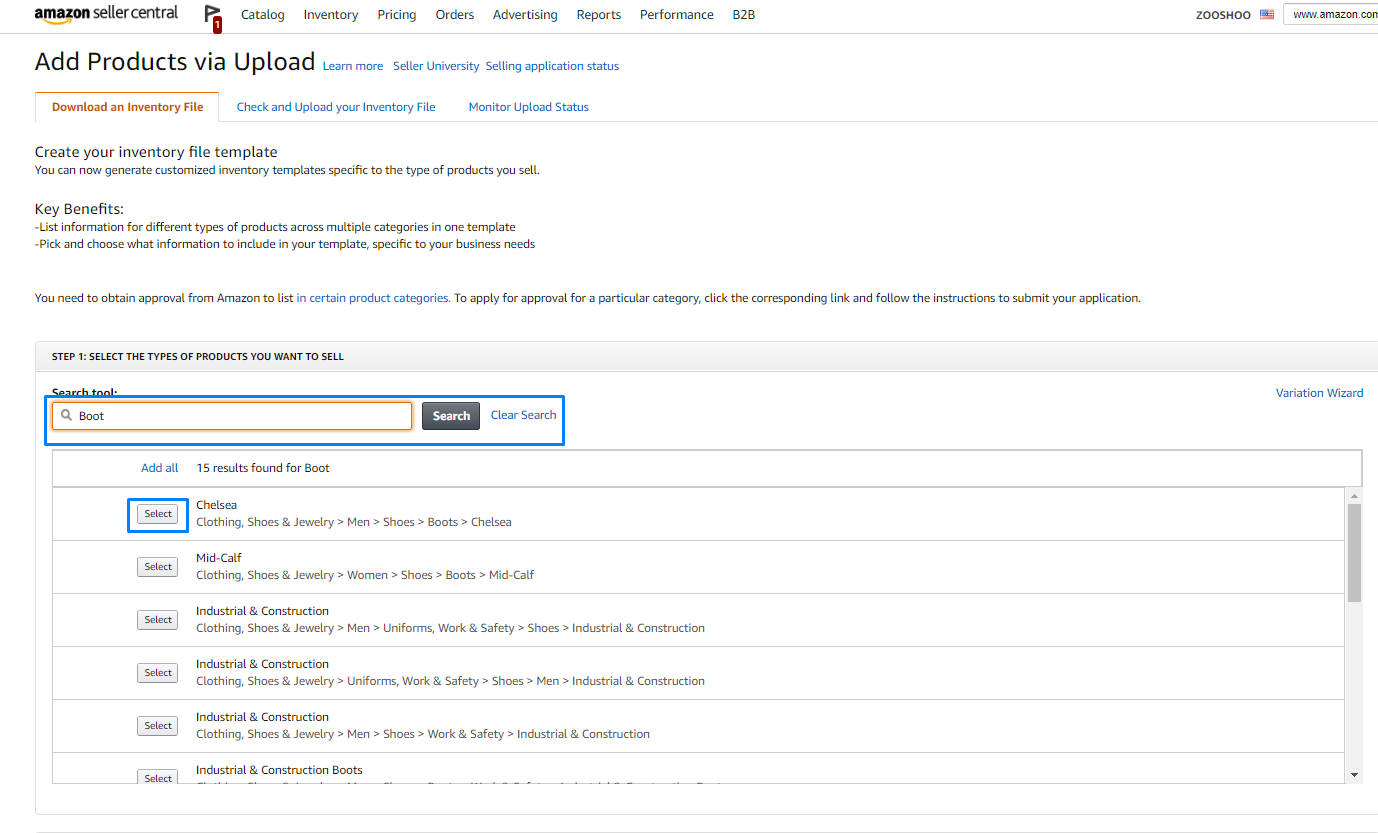
Search for or browse to 'Home & Kitchen' in the category list. This category covers a wide range of products from kitchenware and furniture to home decor and storage. The template will include fields for material composition, dimensions, pattern, room type, and style.

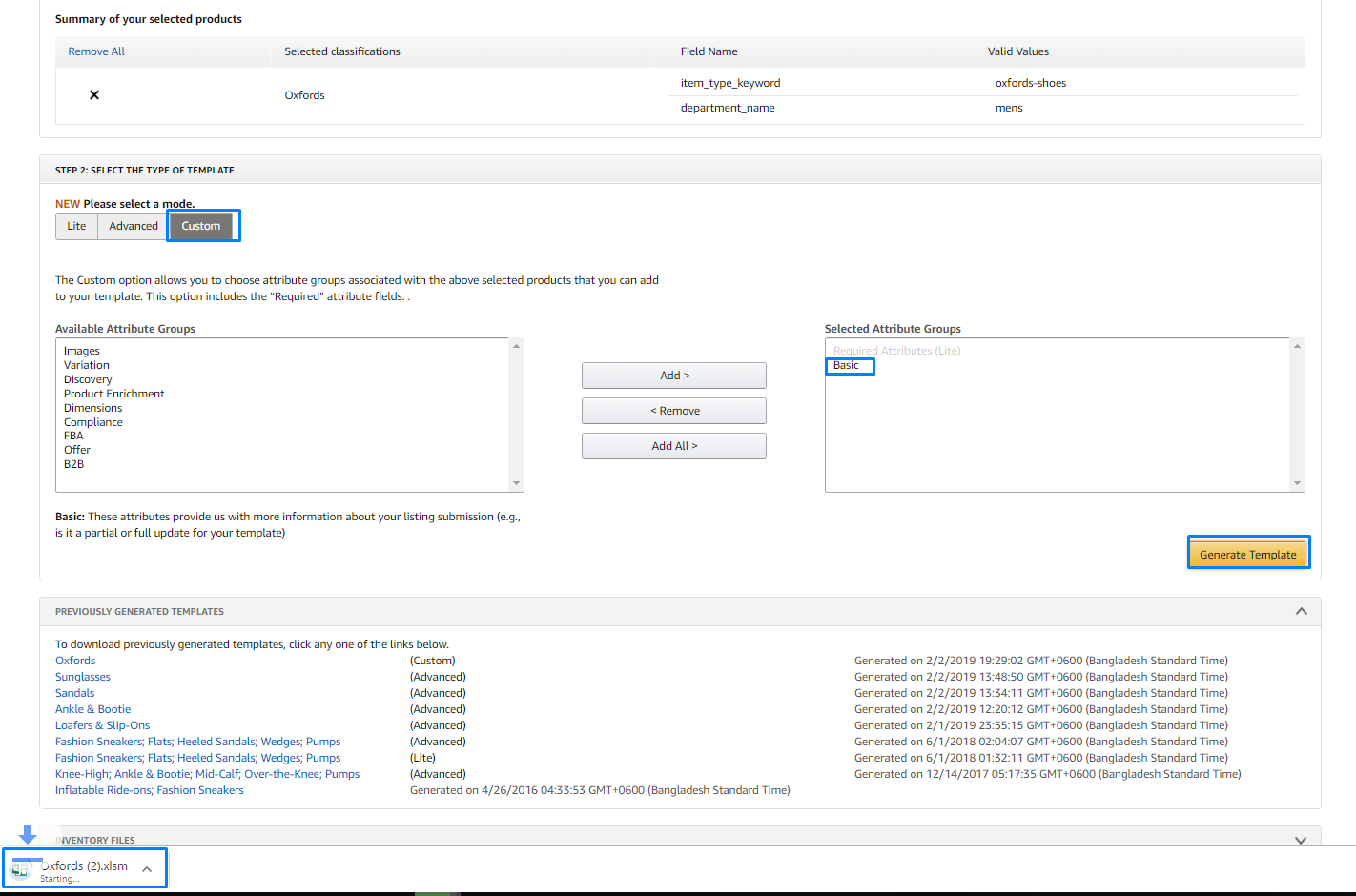
Generate and download the template
Click 'Generate Template' and save the file to your computer. The Home & Kitchen template includes standard fields (SKU, title, price, quantity) alongside category-specific columns for material_composition, item_length, item_width, item_height, pattern_name, room_type, and style_name.
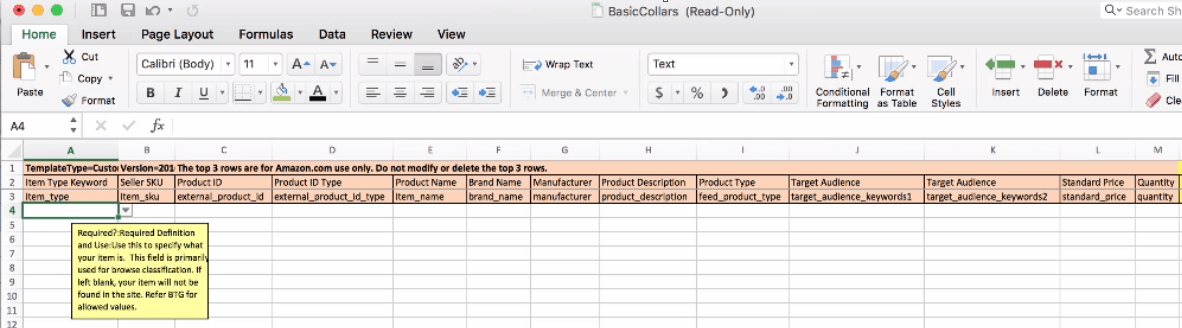
Review home-specific columns and dimensions
Open the template in your spreadsheet application and review the column headers. Home & Kitchen products benefit greatly from complete dimension data (length, width, height in inches) since customers often need to verify that items will fit their space. The Data Definitions tab lists accepted values for fields like room_type and style_name.

Fill in your home product data
Enter your products row by row. Complete all required fields (item_sku, item_name, brand_name, standard_price, quantity) and add the home-specific attributes: material_composition, dimensions, pattern_name, room_type, and style_name. Accurate attributes help your products appear in browse filters on the Amazon storefront.
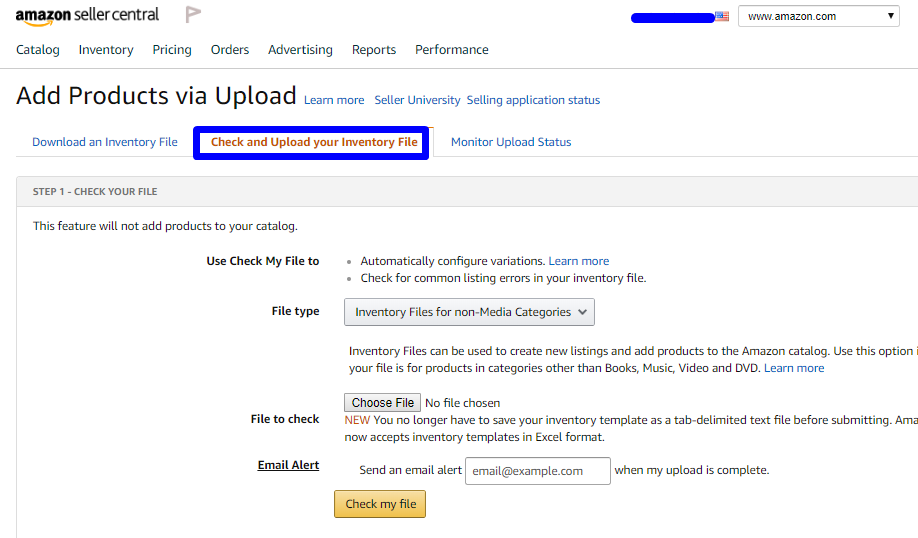
Save and upload the completed file
Save the template file with your data intact and column headers unchanged. Go to Inventory > Add Products via Upload > Upload your Inventory File. Select and upload your file. After processing completes, review the processing report for any validation errors that need to be corrected.
Required Flat File Home Fields
| Field | Type | Description | Example |
|---|---|---|---|
| item_sku | Text | Seller's unique SKU identifier | PROD-001-BLK |
| item_name | Text | Product title (max 200 chars) | Premium Wireless Bluetooth Headphones |
| brand_name | Text | Brand name (must match Brand Registry if enrolled) | TechBrand |
| standard_price | Currency | Selling price | 49.99 |
| quantity | Number | Available stock quantity | 100 |
Your Amazon Seller export must include these fields for successful conversion.
