

How to Export Flat File Clothing from Amazon Seller (2026 Guide)
Follow these steps to export your Amazon Seller flat file clothing as a CSV file. Once exported, you can use any of our converter tools to transform the data for your target system.
Export Steps
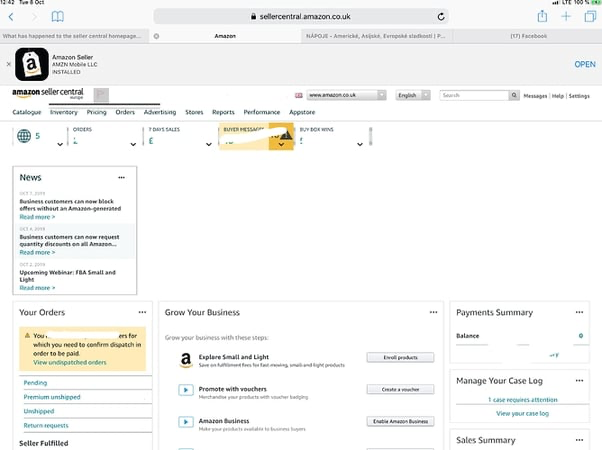
Log in to Amazon Seller Central
Open sellercentral.amazon.com and sign in with your seller account credentials. Complete two-factor authentication if required. Verify you are in the correct marketplace for the clothing products you intend to list or update.
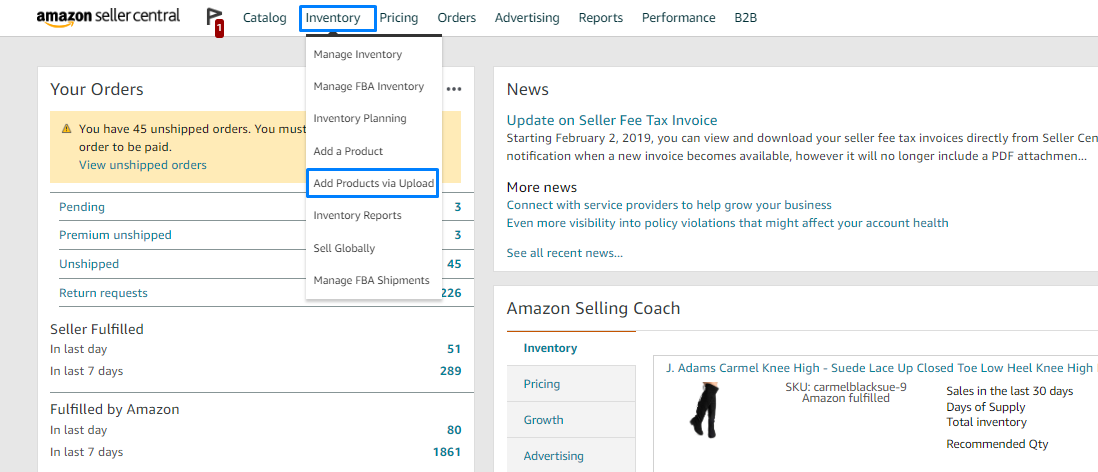
Navigate to Add Products via Upload
Hover over the 'Inventory' menu in the top navigation bar and click 'Add Products via Upload'. This opens the bulk listing management page where you can download category-specific templates, upload completed files, and review processing results.
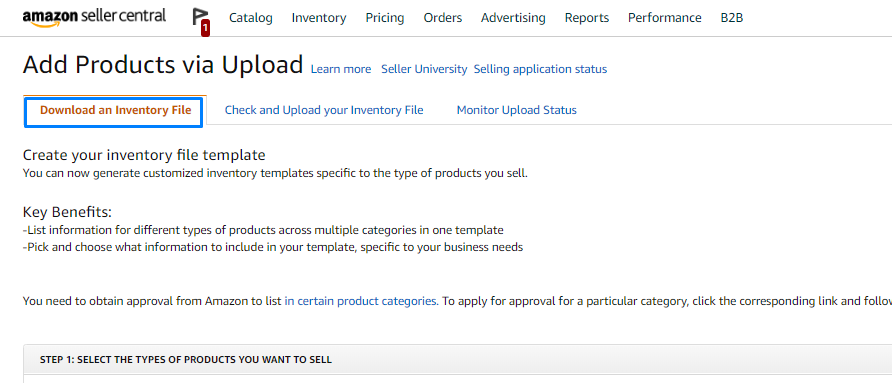
Select Download an Inventory File
Click the 'Download an Inventory File' tab on the upload page. Choose 'Category-Specific Inventory Files' to access templates tailored to individual product categories. These templates include the specialized fields required for each category beyond the standard universal columns.
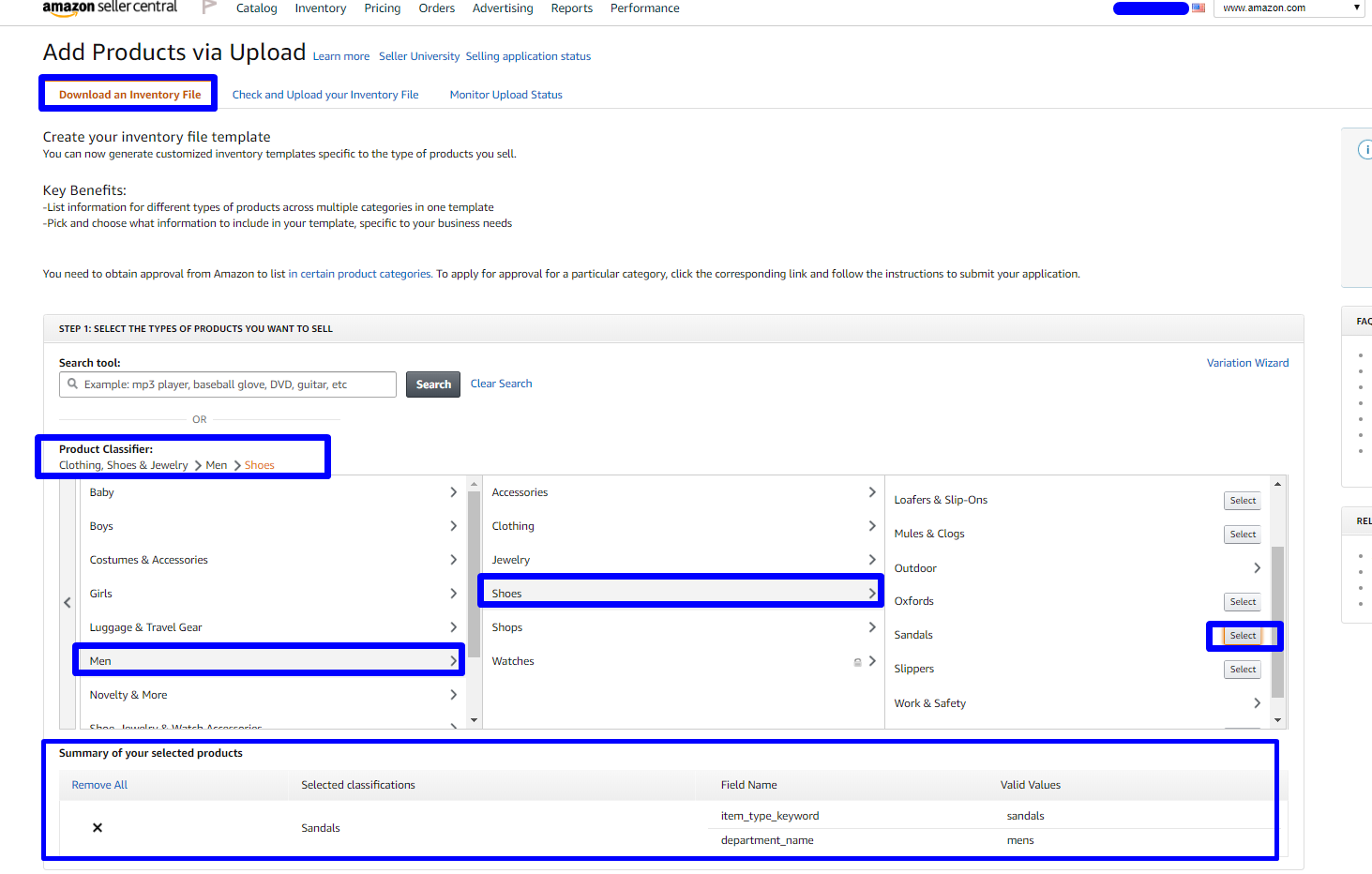
Choose the Clothing and Accessories category
Browse or search the category tree for 'Clothing & Accessories' (also labeled 'Apparel' in some regions). Select this category to generate a template that includes clothing-specific fields such as department, size, color, material type, closure type, and sleeve style.

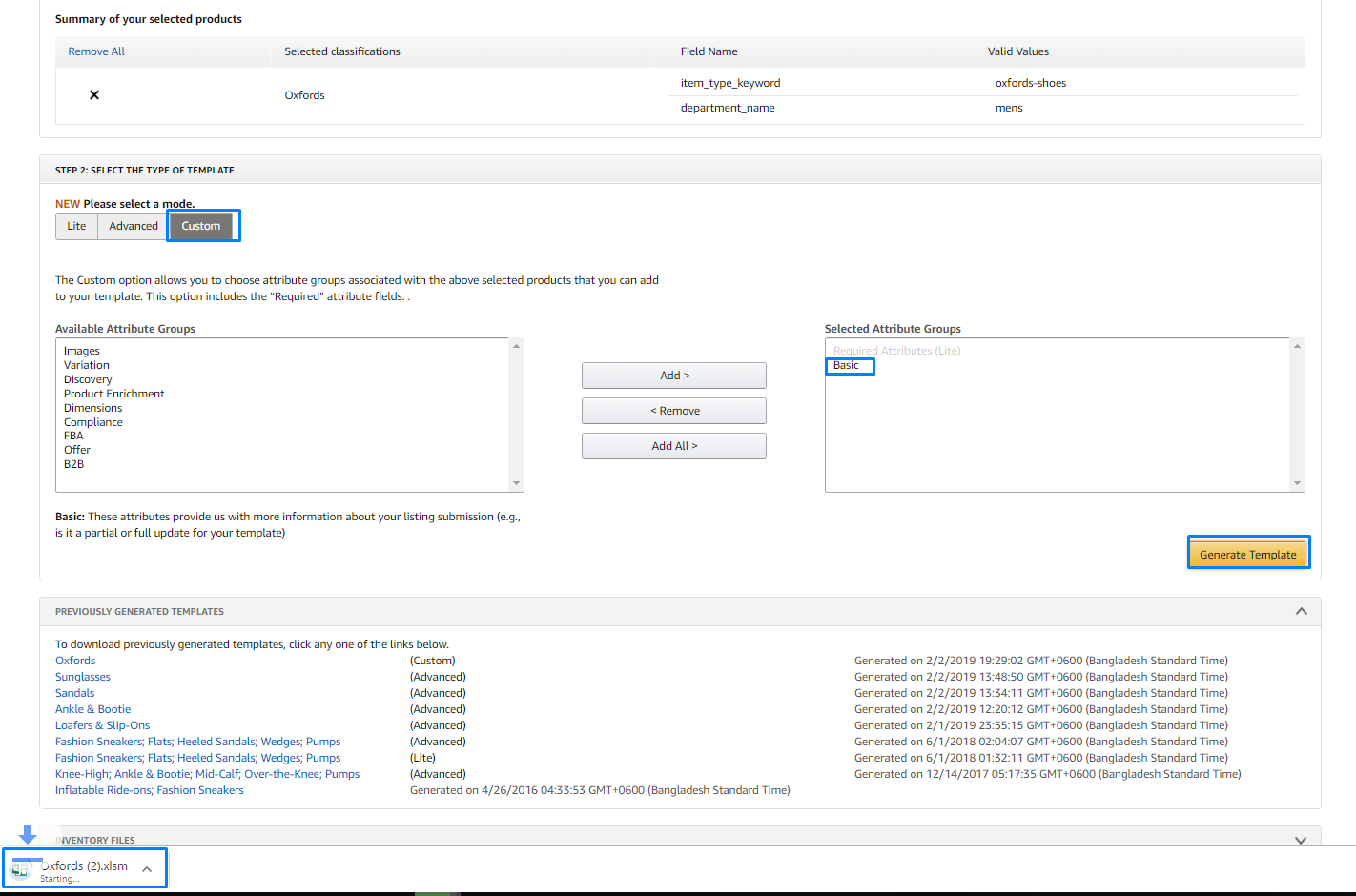
Generate and download the template
Click 'Generate Template' to create the clothing-specific flat file. Save the downloaded file to your computer. The template will include both the universal product fields (SKU, title, price) and clothing-specific columns for department, size_name, color_name, material, and more.
Review the clothing-specific columns
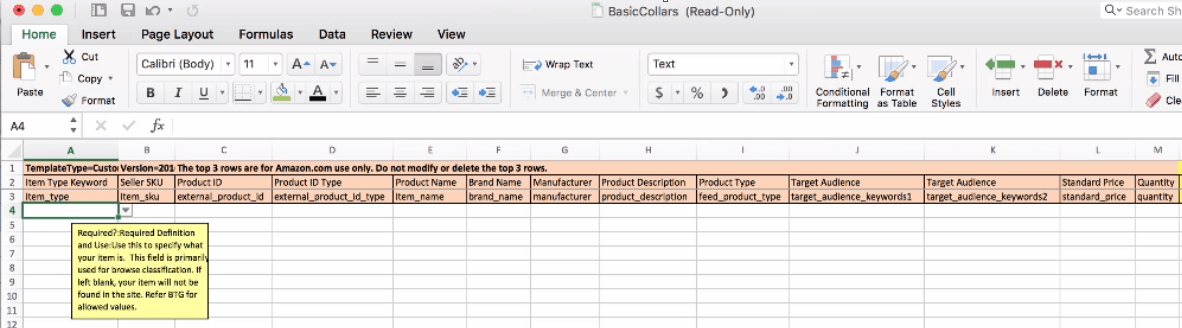
Open the template in Excel and review the column headers. Pay close attention to required clothing fields: department_name (e.g., mens, womens, boys, girls), size_name, and color_name are mandatory for clothing listings. The Data Definitions tab explains accepted values for each field.

Fill in your clothing product data
Enter your clothing products row by row. Include all required fields: item_sku, item_name, brand_name, standard_price, quantity, department_name, size_name, and color_name. Add optional attributes like material_type, closure_type, sleeve_type, and size_map to improve product discoverability in Amazon search filters.
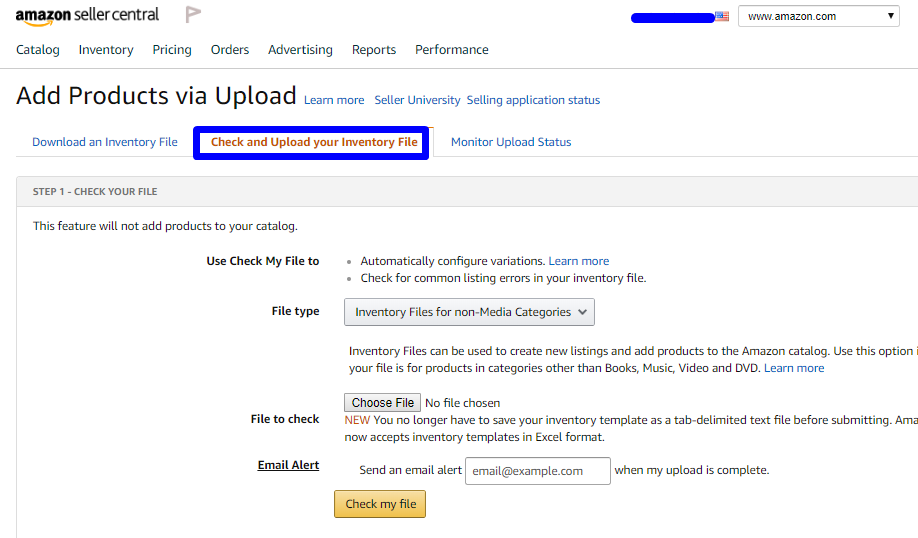
Save and upload the completed file
Save the file in its original format without modifying column headers. Go to Inventory > Add Products via Upload > Upload your Inventory File in Seller Central. Select your file and upload it. Check the processing report afterward for any errors related to invalid sizes, colors, or missing required clothing attributes.
Required Flat File Clothing Fields
| Field | Type | Description | Example |
|---|---|---|---|
| item_sku | Text | Seller's unique SKU identifier | PROD-001-BLK |
| item_name | Text | Product title (max 200 chars) | Premium Wireless Bluetooth Headphones |
| brand_name | Text | Brand name (must match Brand Registry if enrolled) | TechBrand |
| standard_price | Currency | Selling price | 49.99 |
| quantity | Number | Available stock quantity | 100 |
| department_name | Choice | Target department/gender | womens |
| size_name | Text | Size label (S, M, L, XL, 8, 10, etc.) | Medium |
| color_name | Text | Color name | Navy Blue |
Your Amazon Seller export must include these fields for successful conversion.
