

How to Export Flat File Beauty from Amazon Seller (2026 Guide)
Follow these steps to export your Amazon Seller flat file beauty as a CSV file. Once exported, you can use any of our converter tools to transform the data for your target system.
Export Steps
Log in to Amazon Seller Central
Open sellercentral.amazon.com and sign in with your seller account credentials. Complete any two-factor authentication steps. Ensure you are in the correct marketplace for the beauty products you want to list or update.
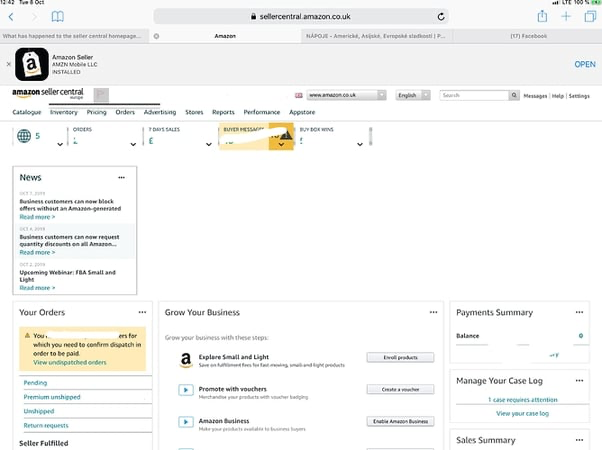
Navigate to Add Products via Upload
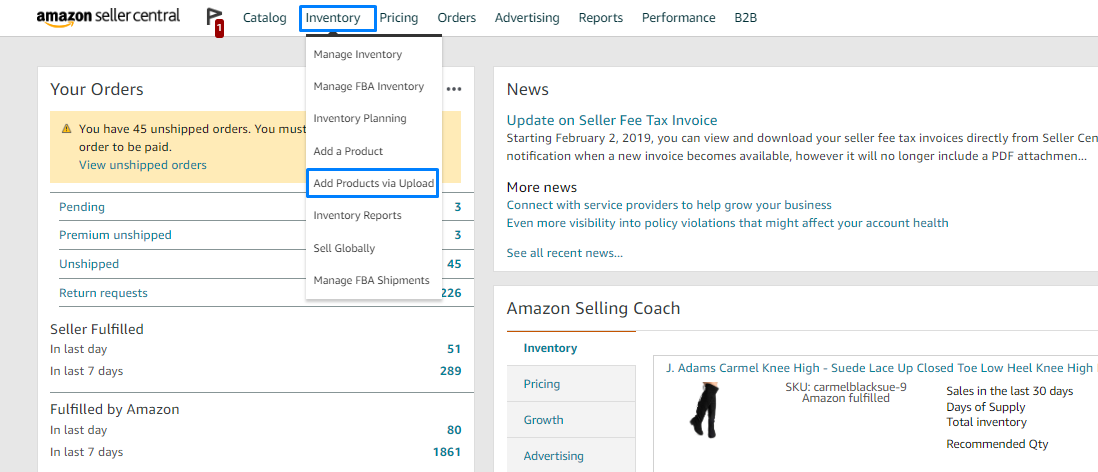
Hover over 'Inventory' in the top navigation bar and click 'Add Products via Upload'. This page serves as the central hub for bulk product management including template downloads, file uploads, and processing report review.
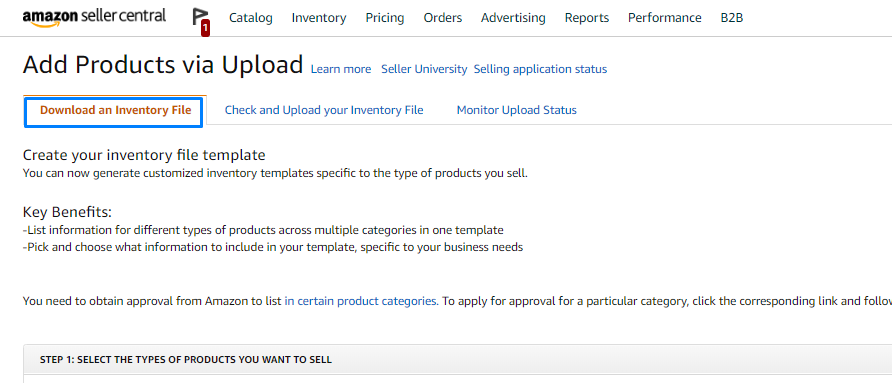
Select Download an Inventory File
Click the 'Download an Inventory File' tab and choose 'Category-Specific Inventory Files'. Category-specific templates are essential for beauty products because they include fields for ingredients, skin type, SPF, and other attributes unique to personal care items.
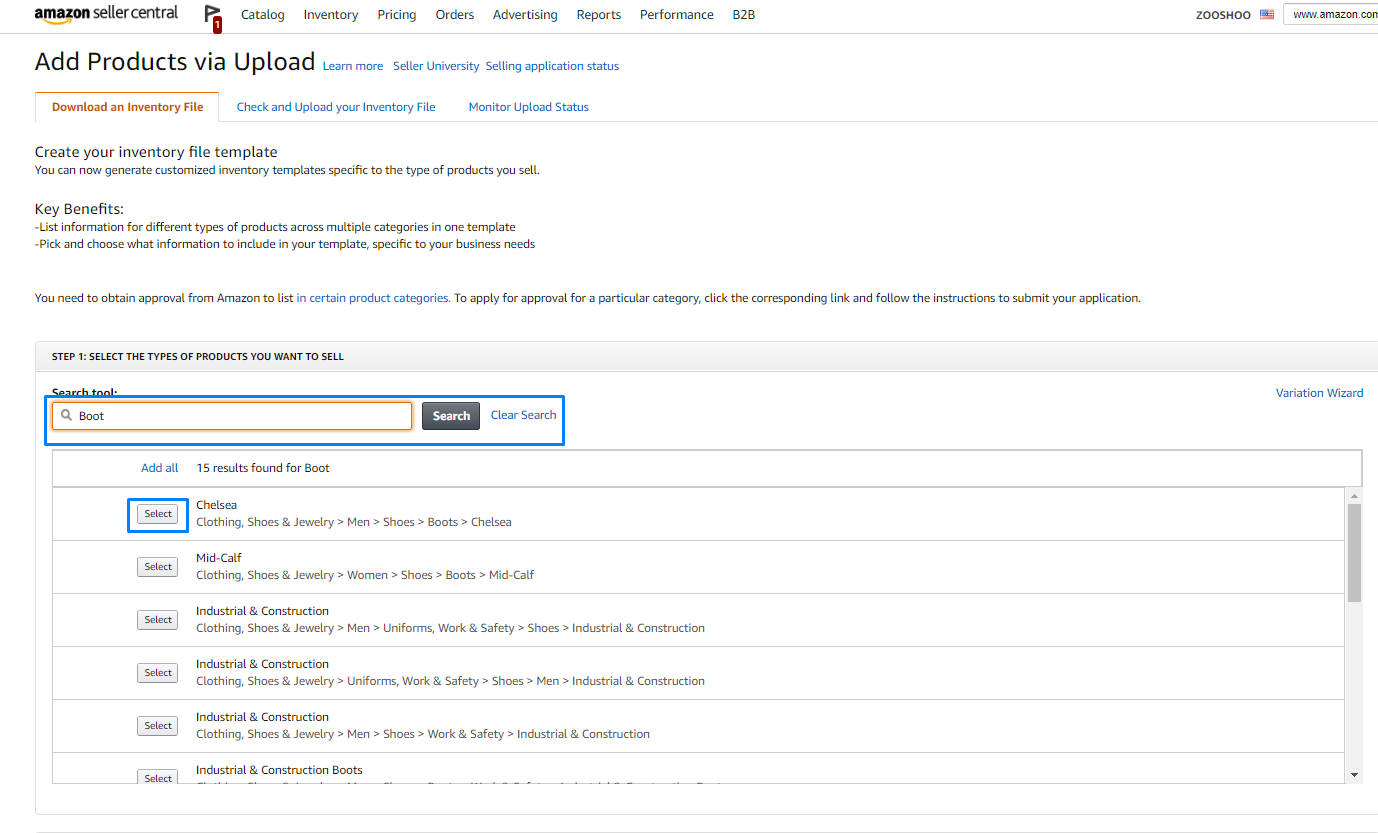
Choose the Beauty and Personal Care category
Search for or browse to 'Beauty & Personal Care' in the category tree. You can also select a more specific subcategory such as 'Skin Care', 'Hair Care', or 'Makeup' if your products fall into a single subcategory. The template will include fields for ingredients, skin_type, sun_protection_factor, item_form, scent, and volume.

Generate and download the template
Click 'Generate Template' and save the file to your computer. The Beauty template includes the universal product fields along with beauty-specific columns: ingredients, target_audience_base, skin_type, sun_protection_factor, item_form, scent, and item_volume.
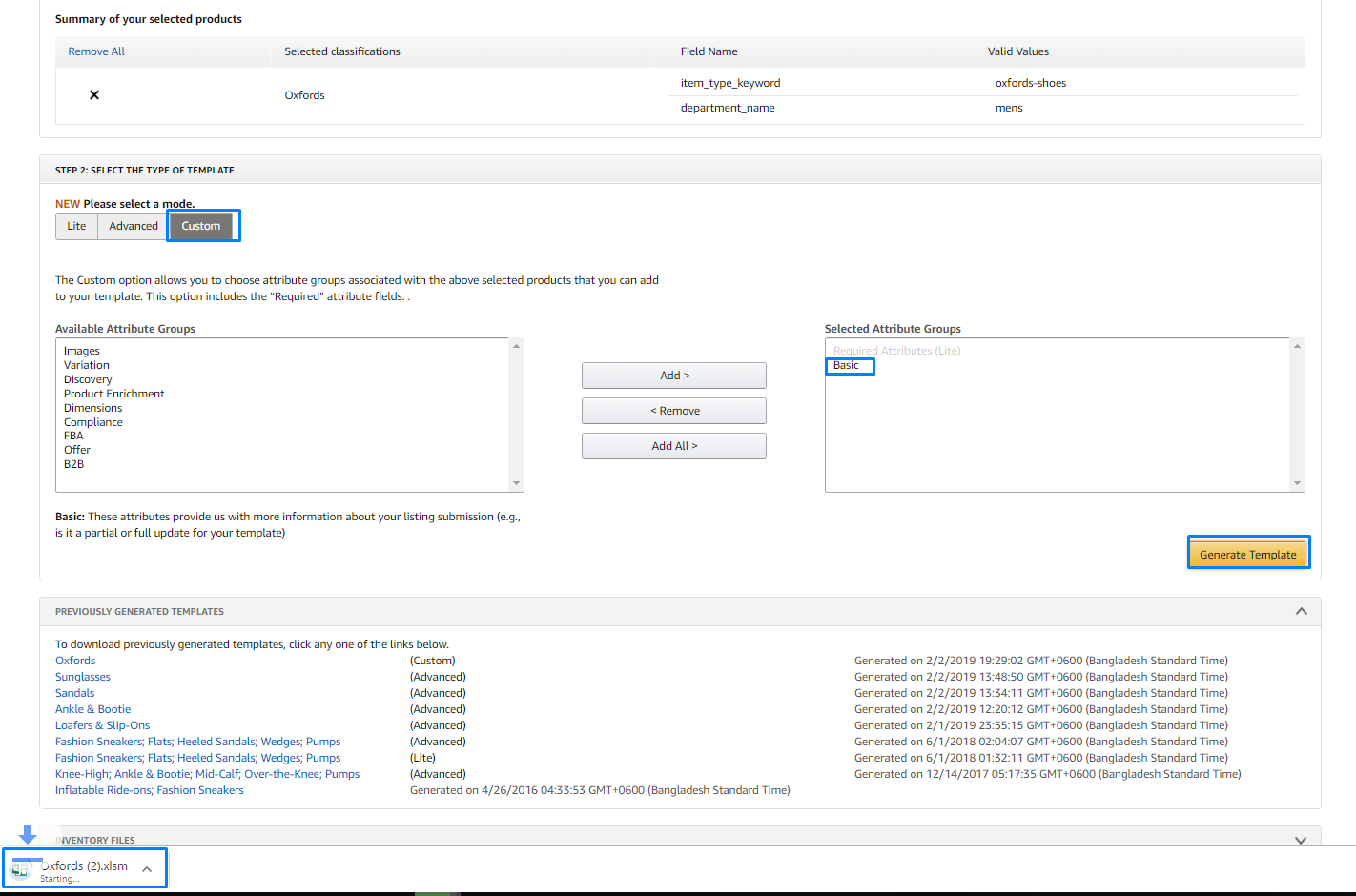
Review beauty-specific columns
Open the template in Excel and examine the beauty-specific columns. The ingredients field is particularly important as it helps customers with allergies or sensitivities make informed purchasing decisions. The skin_type field accepts values like Normal, Dry, Oily, Combination, Sensitive, and All.

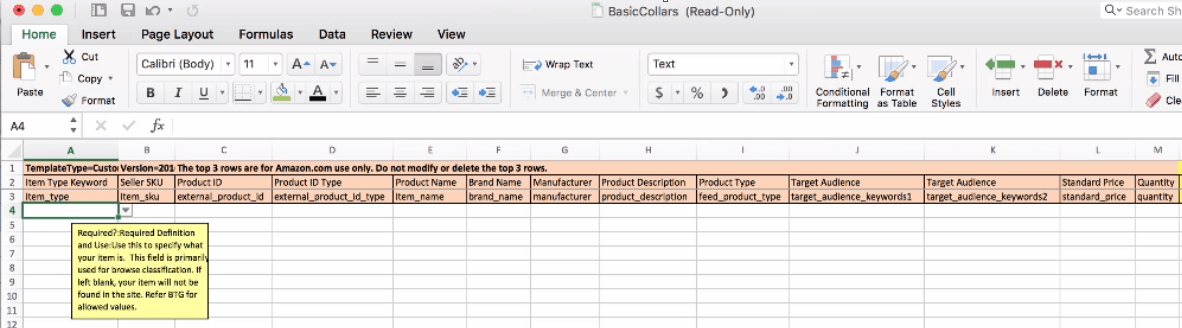
Fill in your beauty product data
Enter your products row by row, starting with the required fields: item_sku, item_name, brand_name, standard_price, and quantity. Then add the beauty-specific attributes such as a complete ingredients list, target audience, skin type recommendation, SPF rating, product form (cream, gel, liquid), scent, and volume with units.
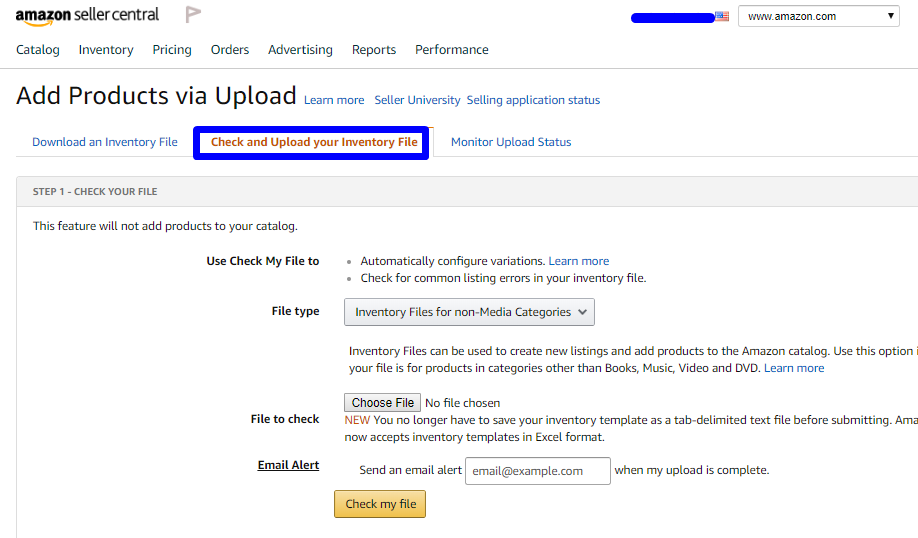
Save and upload the completed file
Save the completed file without modifying column headers. Go to Inventory > Add Products via Upload > Upload your Inventory File in Seller Central. Upload the file and monitor the processing report for any errors related to missing ingredients, invalid skin types, or category gating restrictions.
Required Flat File Beauty Fields
| Field | Type | Description | Example |
|---|---|---|---|
| item_sku | Text | Seller's unique SKU identifier | PROD-001-BLK |
| item_name | Text | Product title (max 200 chars) | Premium Wireless Bluetooth Headphones |
| brand_name | Text | Brand name (must match Brand Registry if enrolled) | TechBrand |
| standard_price | Currency | Selling price | 49.99 |
| quantity | Number | Available stock quantity | 100 |
Your Amazon Seller export must include these fields for successful conversion.
