

How to Export Settlements from Worldpay (2026 Guide)
Follow these steps to export your Worldpay settlements as a CSV file. Once exported, you can use any of our converter tools to transform the data for your target system.
Export Steps
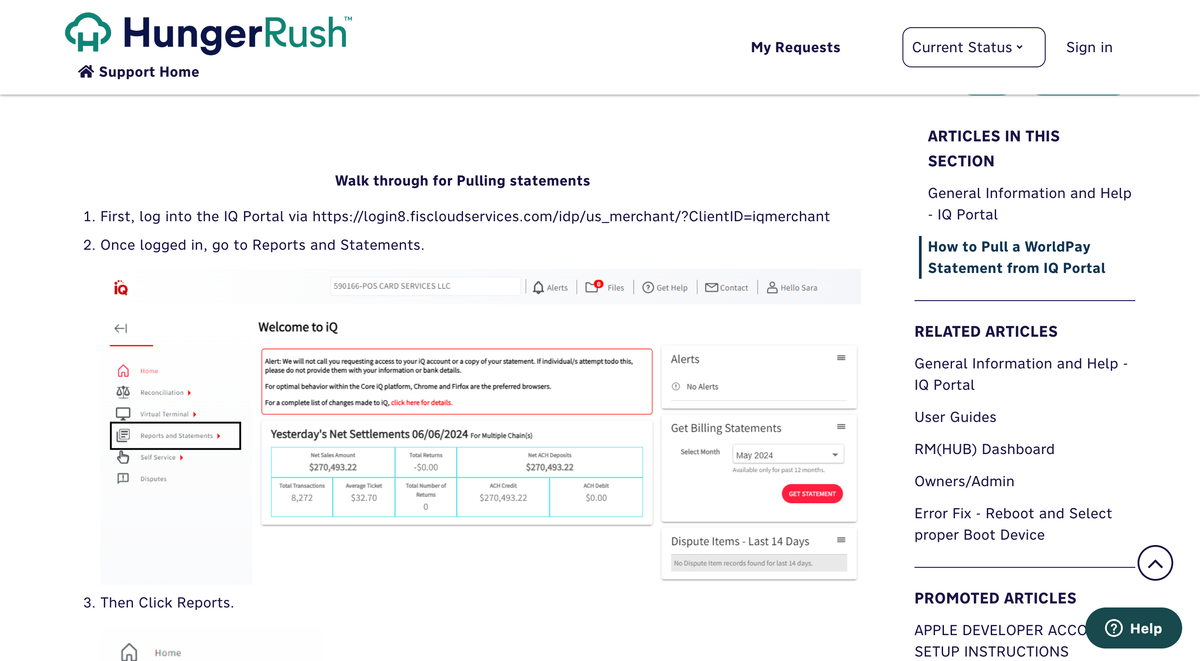
Log in to the Worldpay iQ Portal
Open your browser and navigate to the Worldpay iQ Reporting and Analytics portal. Sign in with your Worldpay merchant credentials. The iQ portal is the central hub for all Worldpay reporting, reconciliation, and data exports.
Access the Settlement Report
From the iQ Bar (the main navigation bar), click the Financial icon. Select 'Settlement Report' from the dropdown list of available financial reports. This report shows settled transaction details with fee breakdowns and net amounts deposited to your bank account.
Set your report parameters
Specify the Date Range for the transactions you want to export. Select the Reporting Group (merchant account or sub-account) and Currency. Click 'View' to refresh the page and display matching settlement data.

Review the settlement summary
The report displays settlement totals including Gross Amount, Fee Amount, and Net Settled Amount. Review the summary to confirm it covers the period and amounts you expect. Check the Batch ID column to match settlements with your bank deposits.
Export settled transactions to CSV
To export transaction-level detail, locate the 'Settled Transactions' count field in the report. Click the CSV Export icon next to the transaction count. A dialog will prompt you to save the file or open it directly. Choose 'Save to Disk' to download the CSV file.

Verify the exported data
Open the CSV file in a spreadsheet application. Confirm that key columns like Payment ID, Transaction Date, Settlement Date, Gross Amount, Fee Amount, Net Settled Amount, and Transaction Type are populated correctly. The Net Settled Amount should equal Gross Amount minus Fee Amount for each row.
Required Settlements Fields
| Field | Type | Description | Example |
|---|---|---|---|
| Payment ID | Text | Unique Worldpay transaction identifier | 12345678901234 |
| Transaction Date | Date/Time | When transaction was processed | 2025-01-15 10:30:45 |
| Settlement Date | Date | When transaction settled to merchant account | 2025-01-16 |
| Gross Amount | Currency | Transaction amount before fees | 100.00 |
| Net Settled Amount | Currency | Amount after fees (what deposits to bank) | 97.50 |
| Transaction Type | Choice | Type of transaction | Sale |
Your Worldpay export must include these fields for successful conversion.
