

How to Import 50 Bank Transaction to Sage 50 (2026 Guide)
After converting your data with one of our tools, follow these steps to import the 50 bank transaction into Sage 50.
Import Steps
Prepare your CSV in the Sage 50 bank transaction format
Sage 50 (UK) requires a specific CSV structure for bank transaction imports. Each row must include Type (BP for Bank Payment, BR for Bank Receipt), Account Ref (the bank nominal code, typically 1200), Nominal A/C (the expense or income account code), Date, Details, Net Amount, and Tax Code. Download the import template from the Sage import page to use as a reference.

Verify your nominal account codes
Before importing, confirm that the Account Ref and Nominal A/C codes in your CSV match existing accounts in your Sage 50 chart of accounts. For example, 1200 is the default Bank Current Account, and 7100 is typically Rent. Open your nominal ledger in Sage to check the codes.

Set the correct VAT tax codes
Each row must include a valid Tax Code. The standard UK VAT codes are: T0 (Zero Rated), T1 (Standard Rate at 20%), T2 (Exempt), T5 (Reduced Rate at 5%), and T9 (Non-VAT). If you leave the Tax Amount column blank, Sage calculates the VAT automatically based on the Tax Code and Net Amount.
Open the bank transaction import in Sage 50
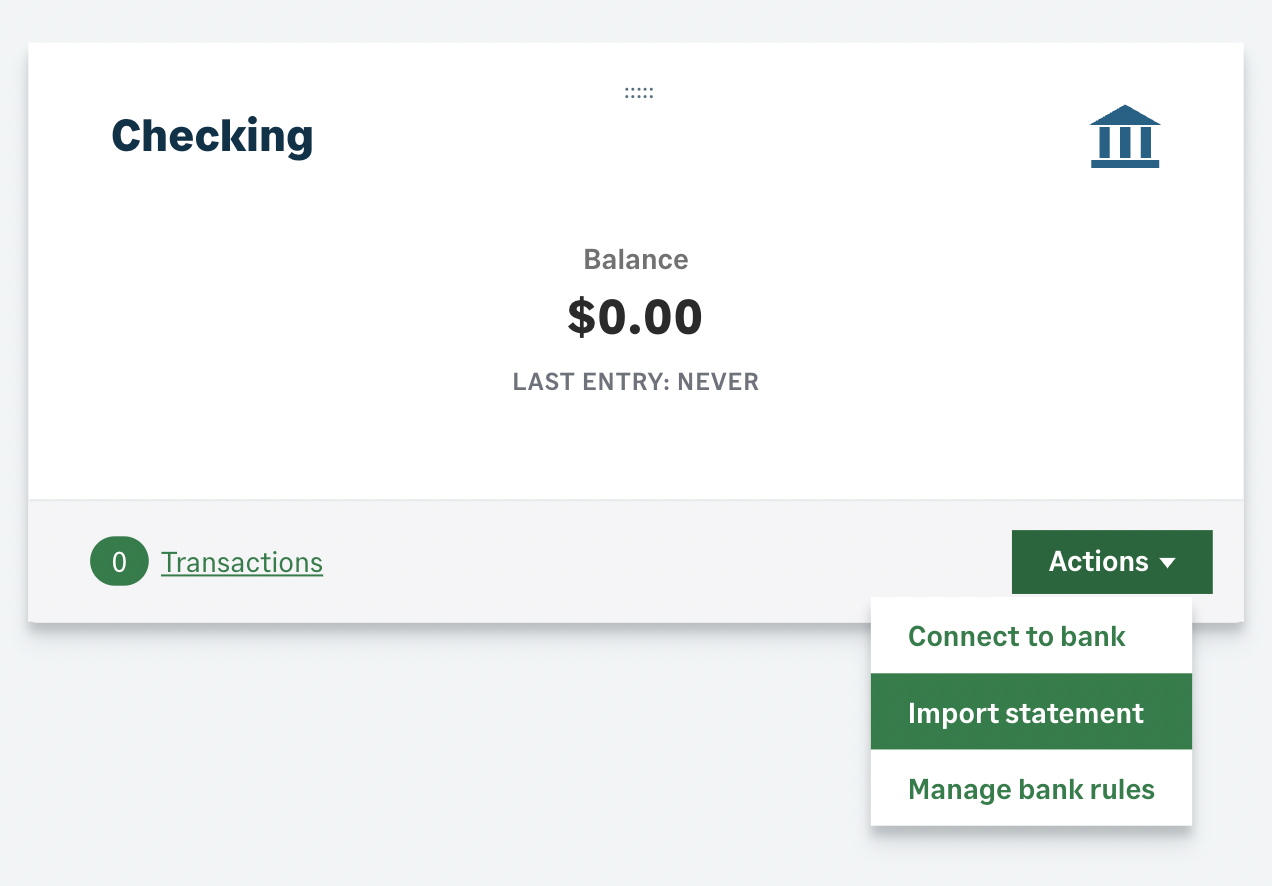
In Sage 50 Accounts, go to Banking in the main navigation. Select the relevant bank account and click Actions. Choose Import Statement from the menu. This opens the import wizard where you select your file type and upload.
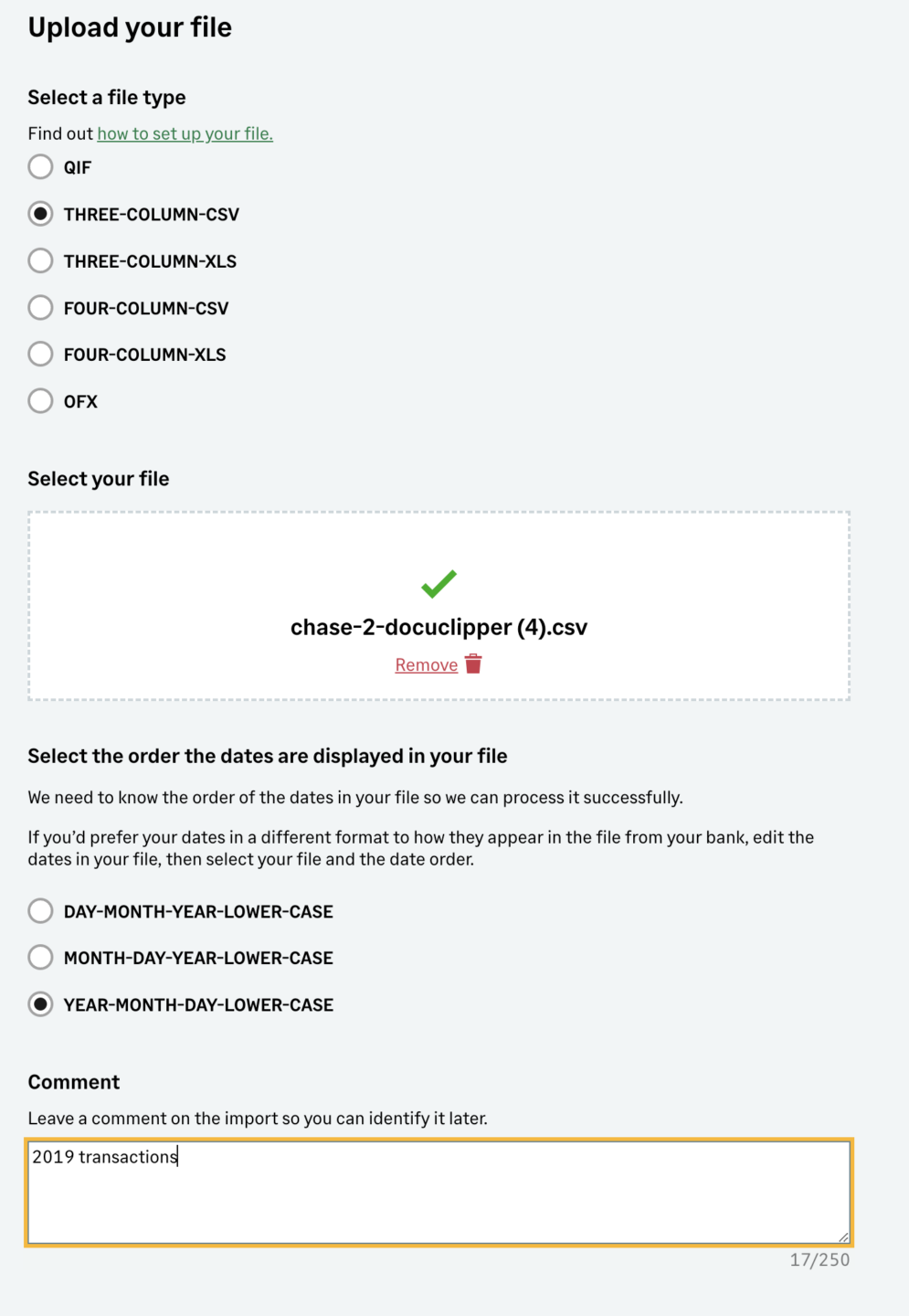
Select the file type and upload your CSV
Choose CSV as the file type in the import wizard. Browse to your CSV file and select it. Sage reads the column headers and displays a preview of your data. Verify that dates, amounts, and descriptions are parsing correctly before proceeding.
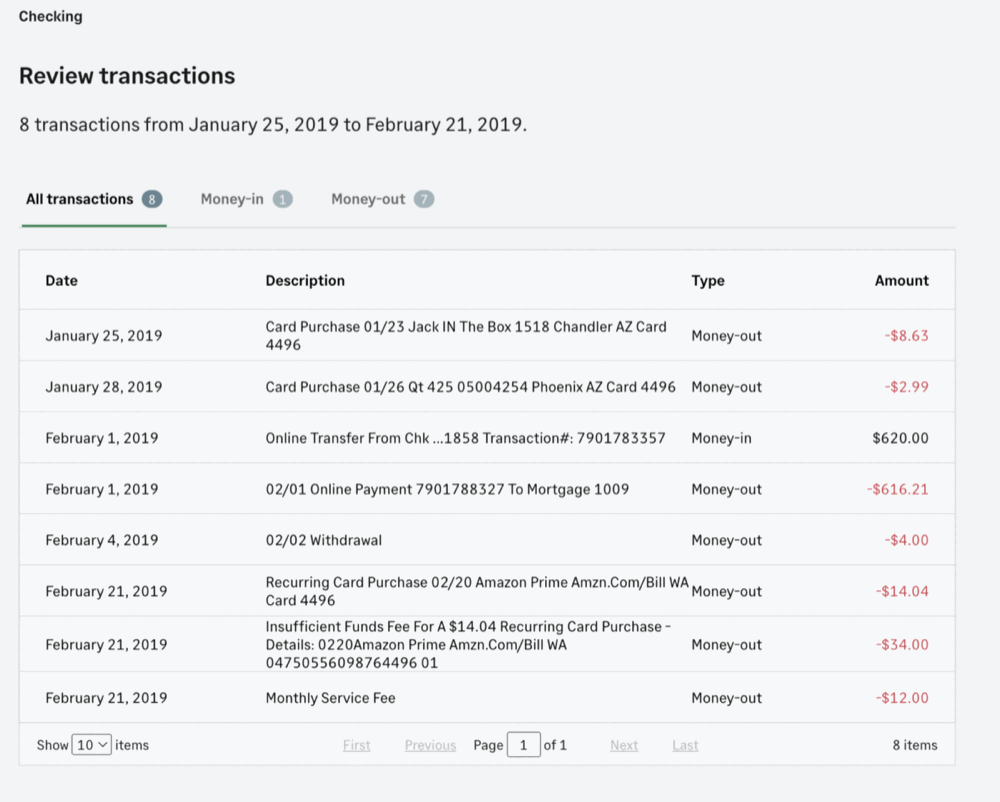
Review imported transactions on the incoming screen
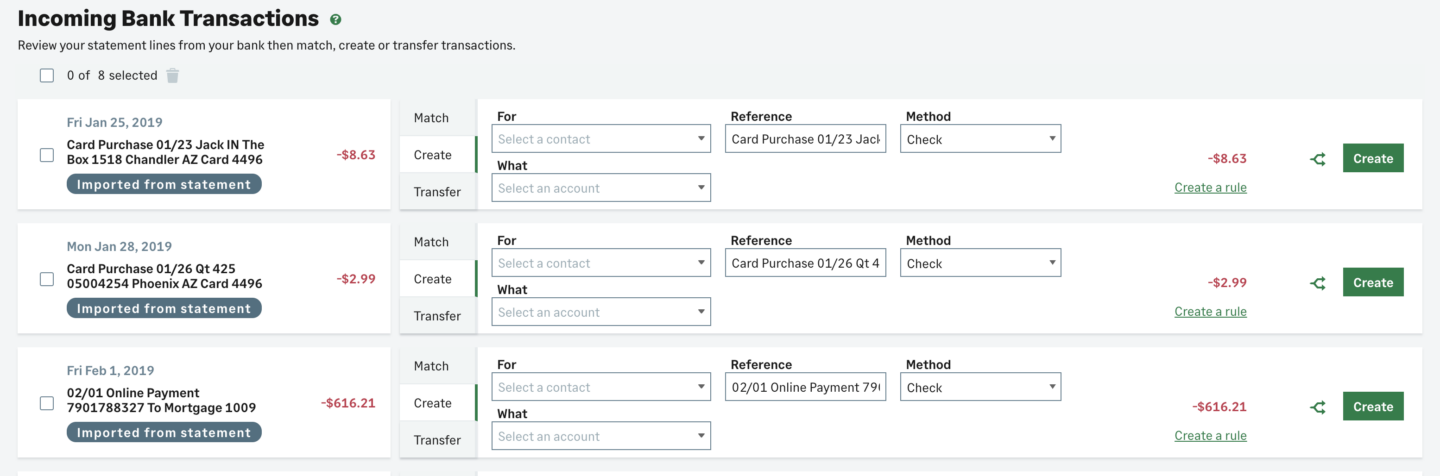
After upload, the transactions appear on the Incoming Bank Transactions screen, the same view used for bank feed transactions. Each imported row is labeled Statement Import to help you distinguish them from automatic bank feeds. Review the transactions to ensure amounts, dates, and descriptions are correct.
Process and post the imported transactions
Process the imported transactions exactly as you would bank feed entries. Sage applies your existing bank rules to auto-categorize recurring items. Match each transaction to the correct nominal account, confirm VAT amounts, and post to the ledger. The transactions are now part of your bank reconciliation.
Required Sage 50 Fields
| Field | Type | Description | Example |
|---|---|---|---|
| Type | Choice | Transaction type: BP=Bank Payment, BR=Bank Receipt | BP |
| Account Ref | Text | Bank account nominal code (e.g., 1200) | 1200 |
| Nominal A/C | Text | Expense/income nominal account code | 7100 |
| Date | Date | Transaction date (DD/MM/YYYY) | 15/01/2025 |
| Details | Text | Transaction description/reference | Office rent payment |
| Net Amount | Currency | Net amount (before VAT) | 500.00 |
| Tax Code | Choice | VAT code: T0=Zero, T1=Standard 20%, T9=None | T1 |
Sage 50 requires these fields for successful import.

