

How to Export Products from Ecwid (2026 Guide)
Follow these steps to export your Ecwid products as a CSV file. Once exported, you can use any of our converter tools to transform the data for your target system.
Export Steps
Log in to your Ecwid admin panel
Navigate to my.ecwid.com and sign in with your Ecwid account credentials. You need store owner or staff permissions with catalog access to export product data.
Navigate to the Products page
In the left sidebar of your Ecwid admin, click on Catalog and then Products. This opens the product catalog page showing all your store products with their names, prices, SKUs, and stock levels.
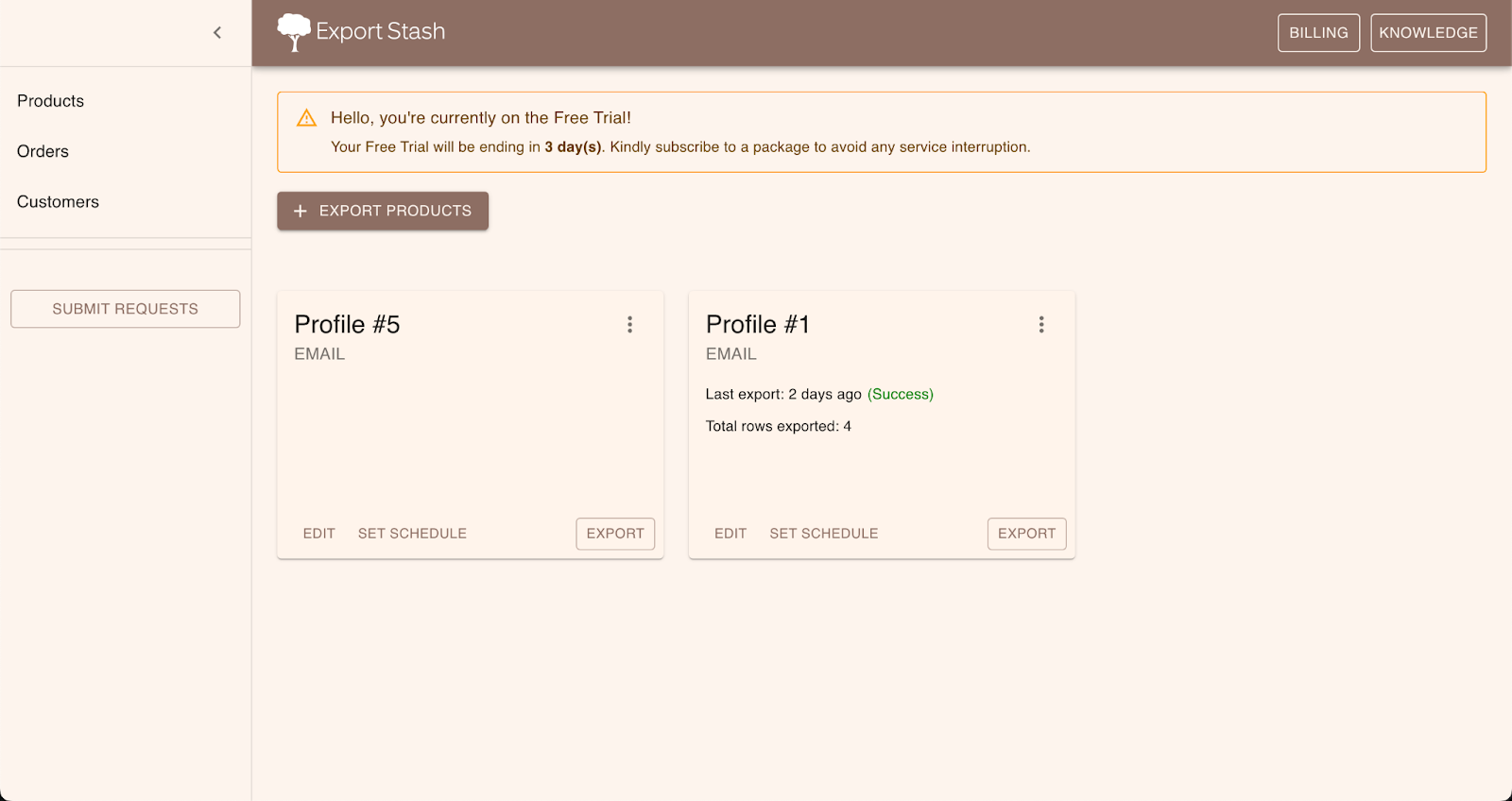
Choose which products to export
To export your entire catalog, you can proceed directly to the export step. To export a filtered subset, use the search field at the top of the product list or click Filter in the top-left corner to apply category, price, or stock filters. To export specific products, select them individually using the checkboxes.

Start the export
For all products, look for the Export All button on the products page. If you filtered or selected specific products, click Export All Found or Export Selected respectively. Ecwid will begin generating the CSV file with all available product details.
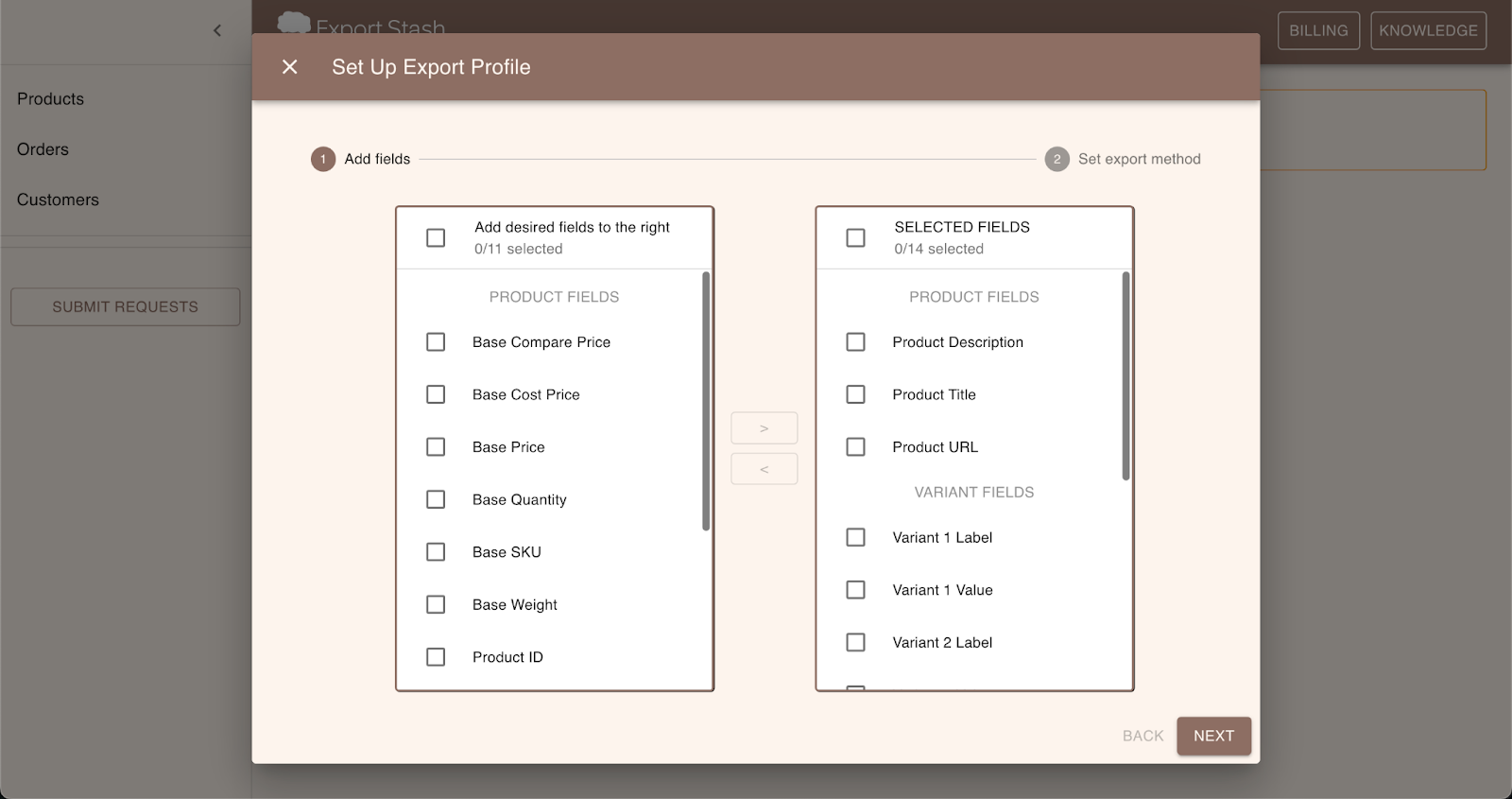
Download the CSV file
The CSV file will be downloaded automatically to your device once generation is complete. The file contains all product information including names, SKUs, descriptions, prices, stock quantities, images, categories, and variant data.
Understand the Ecwid CSV format
Ecwid uses a row-type based CSV format where each row has a type column indicating whether it is a product, product_option, product_variation, product_file, or category. The main product data appears in rows with type=product, while variants and options appear in subsequent rows linked by the product SKU.

Open and verify the exported data
Open the CSV in Google Sheets, Excel, or Numbers to review the exported data. Check that product names, prices, SKUs, and stock quantities are correct. Gallery images are separated by pipe characters in the product_media_gallery_image_url column.
Required Products Fields
| Field | Type | Description | Example |
|---|---|---|---|
| type | Choice | Row type identifier | product |
| product_sku | Text | Product SKU (for updates, must match existing) | SHIRT-BLU-M |
| product_name | Text | Product name/title | Blue Cotton T-Shirt |
| product_price | Currency | Base product price | 29.99 |
Your Ecwid export must include these fields for successful conversion.
