

How to Export Disbursements from Braintree (2026 Guide)
Follow these steps to export your Braintree disbursements as a CSV file. Once exported, you can use any of our converter tools to transform the data for your target system.
Export Steps
Log in to the Braintree Control Panel
Open your browser and navigate to the Braintree Control Panel at braintreegateway.com. Sign in with your merchant account credentials. Ensure your user role has the 'View Statements' permission, which is required to access disbursement reports.
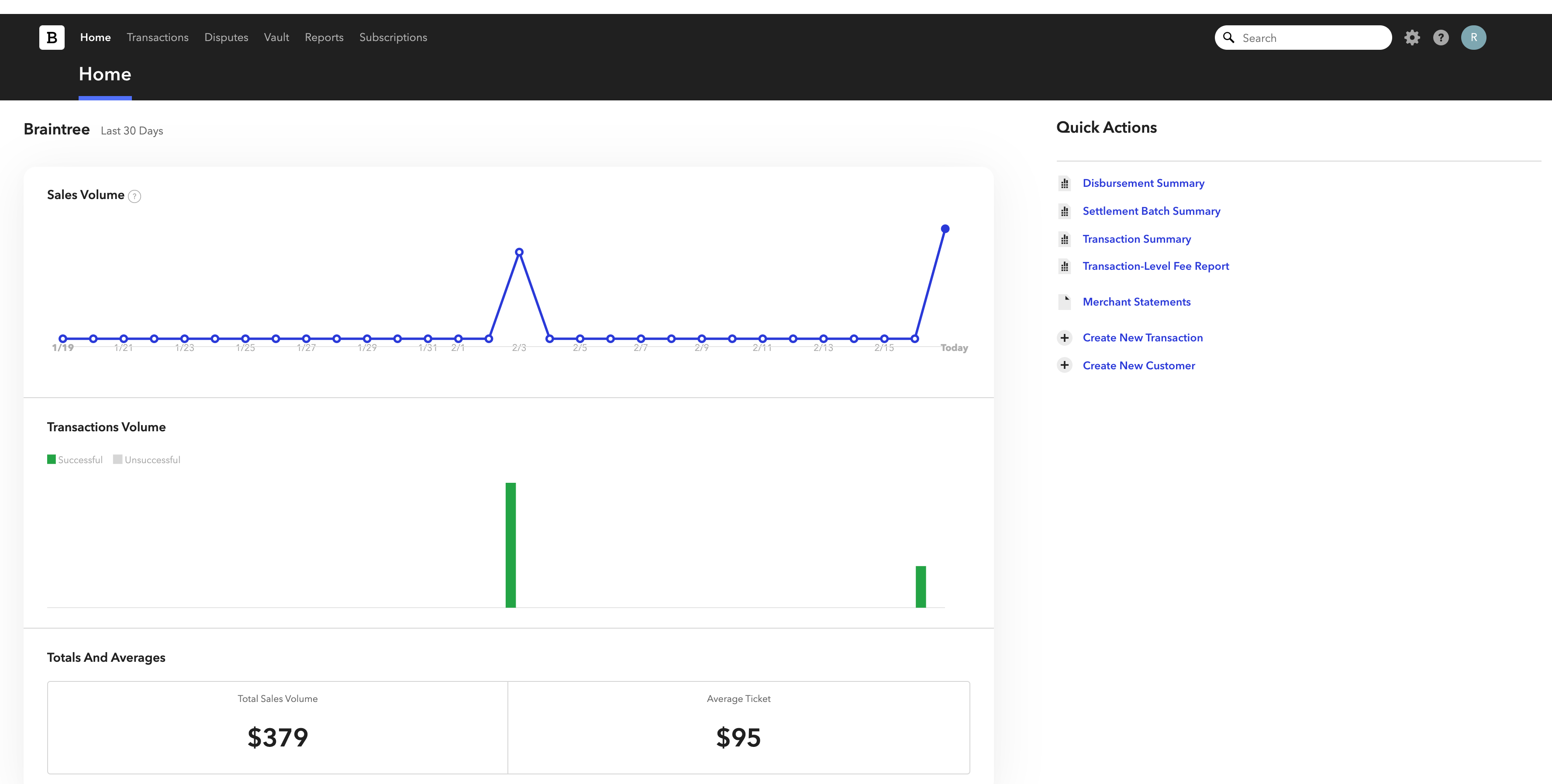
Navigate to the Reports section
In the left-hand navigation menu, click on 'Reports'. If you do not see the Reports option, your user role may lack the necessary permissions. Contact your account administrator to enable the 'View Statements' role permission.

Open the Settlement Batch Summary
Within the Reports section, click on 'Settlement Batch Summary'. This report shows daily settlement totals grouped by card type, along with disbursement dates and amounts that correspond to your bank deposits.
Select the date range
Choose the date range for the disbursement data you want to export. The Settlement Batch Summary allows you to view data by day, week, or custom range. The Disbursement Date column shows when funds were actually sent to your bank account.

Download the CSV file
Click the 'Download .CSV' button at the top of the report. A dialog will prompt you to save the file or open it directly. Choose 'Save' to download the file to your computer. The export includes Disbursement ID, Disbursement Date, Amount, Currency, Merchant Account, and settlement batch references.
Verify the disbursement data
Open the CSV file in a spreadsheet application and verify that the disbursement amounts align with your bank deposits. Check the Exception Message and Follow-up Action columns for any failed disbursements that may require attention.
Required Disbursements Fields
| Field | Type | Description | Example |
|---|---|---|---|
| Disbursement ID | Text | Disbursement batch identifier | disb_20250116_001 |
| Disbursement Date | Date | Date of payout | 2025-01-16 |
| Amount | Currency | Disbursement amount | 640.49 |
Your Braintree export must include these fields for successful conversion.